
Troubleshooting vRA & vRO - Troubleshooting Services and PODs

 Troubleshooting vRA & vRO - Troubleshooting Services and PODs


VMware vRealize Automation 8.x – Helpful Commands

 To begin there are 3 main CLI’s that can be used :

The vRA and vRO Services and POD’s running on Kubernetes and useKubectl commands for getting information and troubleshooting.

Handling Namespaces

Listing the Namespaces

1. To get list of all the namespaces and their status below command can be used


Kubectl get namespaces


Handling Services

The vRA and vRO run under namespace called “prelude”

PODs

1. To get list of all the PODs and their status below command can be used

Kubectl get pods -n prelude


2. To get filtered list of all the PODs and status below command can be used
Syntax : Kubectl get pods -n prelude | grep -i podname


Kubectl get pods -n prelude | grep -i vco


Restarting Services

1. The Specific Service can be restarted using below command

Syntax : Kubectl delete pods -n prelude < Service Name>

Kubectl delete pods -n prelude vco-app-xxxxxxxxxxxxx

image

While its getting deleted the POD, it goes to terminating state and new POD for service will be created. To get list specific PODs and its status below command can be used.

Kubectl get pods -n prelude | grep -i vco

And now New POD initialize and goes to running state, To get list specific PODs and its status below command can be used.


Kubectl get pods -n prelude | grep -i vco

NOTE: Watch the uptime of the POD

The Dependencies Services
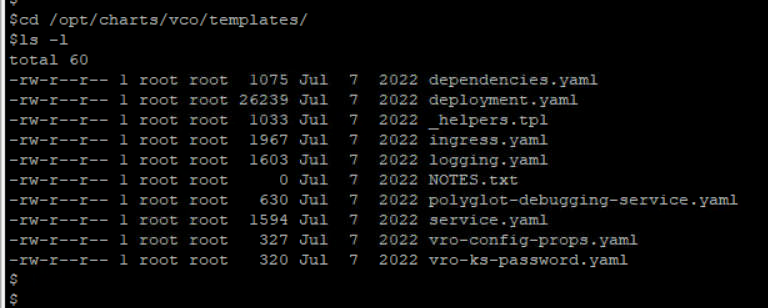
/opt/charts/ < service name>/templates

cd /opt/charts/vco/templates
ls -l
image

Comments

Popular posts from this blog

Step-by-Step Explanation of Ballooning, Compression & Swapping in VMware

 ðŸ”¹ Step-by-Step Explanation of Ballooning, Compression & Swapping in VMware ⸻ 1️⃣ Memory Ballooning (vmmemctl) Ballooning is the first memory reclamation technique used when ESXi detects memory pressure. ➤ Step-by-Step: How Ballooning Works  1. VMware Tools installs the balloon driver (vmmemctl) inside the guest OS.  2. ESXi detects low free memory on the host.  3. ESXi inflates the balloon in selected VMs.  4. Balloon driver occupies guest memory, making the OS think RAM is full.  5. Guest OS frees idle / unused pages (because it believes memory is needed).  6. ESXi reclaims those freed pages and makes them available to other VMs. Why Ballooning Happens?  • Host free memory is very low.  • ESXi wants the VM to release unused pages before resorting to swapping. Example  • Host memory: 64 GB  • VMs used: 62 GB  • Free: 2 GB → ESXi triggers ballooning  • VM1 (8 GB RAM): Balloon inflates to 2 GB → OS frees 2 GB → ESXi re...

ESXi Host Troubleshooting Checklist

  🛠️ ESXi Host Troubleshooting Checklist (With Complete Log Locations) ✅ 1. Host Status & Connectivity Check host state in vCenter (Connected / Not Responding / Disconnected) Review CPU, RAM, and datastore usage Validate HA/DRS recommendations ✅ 2. Hardware Health Monitor hardware sensors (CPU, DIMMs, fans, PSU, RAID) Check RAID controller logs via vendor tools View hardware status in: vCenter → Monitor → Hardware Health DCUI → Hardware Status ✅ 3. Network Validation Verify vSwitches, Port Groups, NIC teaming, VLAN tagging Check vmkernel ports (mgmt, vMotion, iSCSI, vSAN) Test reachability using: Shell vmkping < IP > Show more lines Validate physical NIC status and link speed ✅ 4. Storage & Datastore Checks Confirm datastore accessibility Rescan storage adapters (iSCSI/FC/NFS) Validate multipathing (Round Robin / Fixed / MRU) Check datastore latency with esxtop ✅ **5. Critical Logs & Their Locations (Full List) Here are key ESXi log files that every VMware adm...
  vCenter Troubleshooting Tips, Common Issues & Log Locations 🚀 1. General Troubleshooting Approach A. Check service health first For vCenter Server Appliance (VCSA): Shell https : / / < vcenter - FQDN > : 5480 Show more lines Go to Services → Health to verify: vCenter Server ESXi hosts vSphere Client DNS, NTP, DB connections vpxd, vpxd-svcs, vsphere-ui B. DNS & NTP checks vCenter is highly dependent on correct DNS & time sync. Check: Shell nslookup < vcenter - fqdn > nslookup < esxi - host - fqdn > Show more lines Time drift > 5 minutes causes: Login failures vpxd crashes PSC authentication issues C. Check storage/database health Slow DB/storage = UI slow, tasks hung. For VCSA: Shell df - h du - sh / storage / log / * / var / log Show more lines Free up space if partitions hit >80%. D. Restart critical services safely On VCSA: Shell service - control - - status service - control - - stop - - all service - control - - start - - all ...