How do I reset the root password for VMware Aria Automation


u can reset a lost or forgotten VMware Aria Automation root password.

In this procedure, you use a command line window on the host vCenter appliance to reset your organization’s VMware Aria Automation root password.

Prerequisites

This process is for VMware Aria Automation administrators and requires the credentials needed to access the host vCenter appliance.

For related information about password management in VMware Aria Suite Lifecycle, see KB 92245.

Procedure

  1. Shut down and start up VMware Aria Automation by using the procedure described in Starting and stopping VMware Aria Automation.
  2. When the Photon operating system command line window appears, enter e and press the Enter key to open the GNU GRUB boot menu editor.
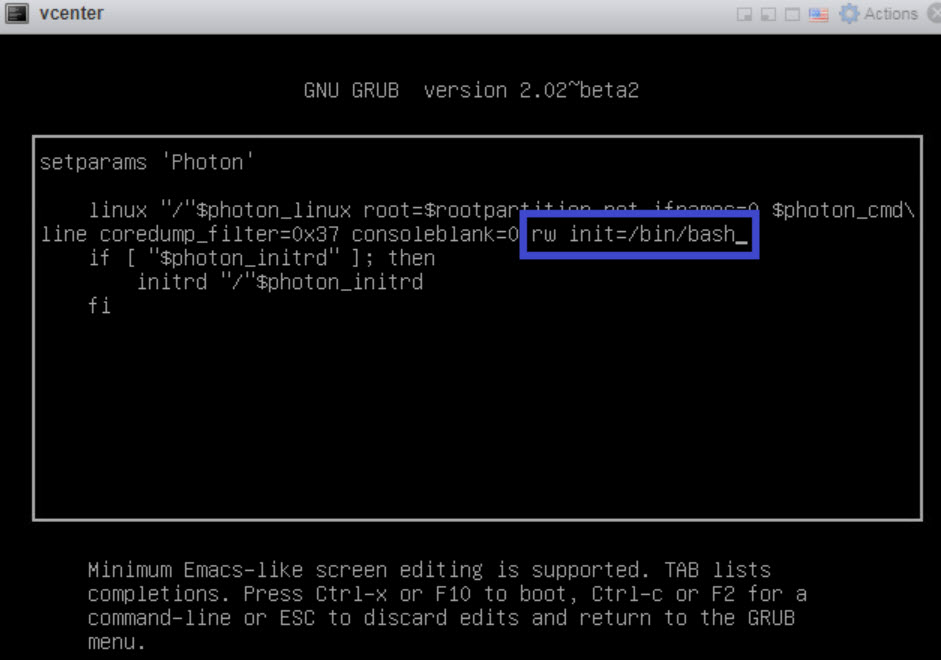
  3. In the GNU GRUB editor, enter rw init=/bin/bash at the end of the line that begins with linux "/" $photon_linux root=rootpartition as shown below:

    reset root password string in context

  4. Click the F10 key to push your change and restart VMware Aria Automation.
  5. Wait for VMware Aria Automation to restart.
  6. At the root [/]# prompt, enter passwd and press the Enter key.
  7. At the New password: prompt, enter your new password and press the Enter key.
  8. At the Retype new password: prompt, reenter your new password and press the Enter key.
  9. At the root [/]# prompt, enter reboot -f and press the Enter key to complete the root password reset process.
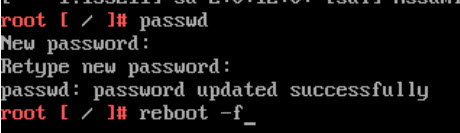
    reset root password success

What to do next

As a VMware Aria Automation administrator, you can now log in to VMware Aria Automation with the new root password.

To remediate passwords outside of VMware Aria Suite Lifecycle , see KB 92253.

Comments

Popular posts from this blog

Step-by-Step Explanation of Ballooning, Compression & Swapping in VMware

 ðŸ”¹ Step-by-Step Explanation of Ballooning, Compression & Swapping in VMware ⸻ 1️⃣ Memory Ballooning (vmmemctl) Ballooning is the first memory reclamation technique used when ESXi detects memory pressure. ➤ Step-by-Step: How Ballooning Works  1. VMware Tools installs the balloon driver (vmmemctl) inside the guest OS.  2. ESXi detects low free memory on the host.  3. ESXi inflates the balloon in selected VMs.  4. Balloon driver occupies guest memory, making the OS think RAM is full.  5. Guest OS frees idle / unused pages (because it believes memory is needed).  6. ESXi reclaims those freed pages and makes them available to other VMs. Why Ballooning Happens?  • Host free memory is very low.  • ESXi wants the VM to release unused pages before resorting to swapping. Example  • Host memory: 64 GB  • VMs used: 62 GB  • Free: 2 GB → ESXi triggers ballooning  • VM1 (8 GB RAM): Balloon inflates to 2 GB → OS frees 2 GB → ESXi re...

ESXi Host Troubleshooting Checklist

  🛠️ ESXi Host Troubleshooting Checklist (With Complete Log Locations) ✅ 1. Host Status & Connectivity Check host state in vCenter (Connected / Not Responding / Disconnected) Review CPU, RAM, and datastore usage Validate HA/DRS recommendations ✅ 2. Hardware Health Monitor hardware sensors (CPU, DIMMs, fans, PSU, RAID) Check RAID controller logs via vendor tools View hardware status in: vCenter → Monitor → Hardware Health DCUI → Hardware Status ✅ 3. Network Validation Verify vSwitches, Port Groups, NIC teaming, VLAN tagging Check vmkernel ports (mgmt, vMotion, iSCSI, vSAN) Test reachability using: Shell vmkping < IP > Show more lines Validate physical NIC status and link speed ✅ 4. Storage & Datastore Checks Confirm datastore accessibility Rescan storage adapters (iSCSI/FC/NFS) Validate multipathing (Round Robin / Fixed / MRU) Check datastore latency with esxtop ✅ **5. Critical Logs & Their Locations (Full List) Here are key ESXi log files that every VMware adm...
  vCenter Troubleshooting Tips, Common Issues & Log Locations 🚀 1. General Troubleshooting Approach A. Check service health first For vCenter Server Appliance (VCSA): Shell https : / / < vcenter - FQDN > : 5480 Show more lines Go to Services → Health to verify: vCenter Server ESXi hosts vSphere Client DNS, NTP, DB connections vpxd, vpxd-svcs, vsphere-ui B. DNS & NTP checks vCenter is highly dependent on correct DNS & time sync. Check: Shell nslookup < vcenter - fqdn > nslookup < esxi - host - fqdn > Show more lines Time drift > 5 minutes causes: Login failures vpxd crashes PSC authentication issues C. Check storage/database health Slow DB/storage = UI slow, tasks hung. For VCSA: Shell df - h du - sh / storage / log / * / var / log Show more lines Free up space if partitions hit >80%. D. Restart critical services safely On VCSA: Shell service - control - - status service - control - - stop - - all service - control - - start - - all ...