This post going to explain detailed view about Transparent Page Sharing. In my Previous post, “VMware Memory Management Part 1 – Understanding ESXi Host Memory States”.
I have explained the relation between ESXi host memory states and
various memory management techniques.One of the important memory
technique which always work towards to save the memory on the host is
Transparent Page sharing. Also referred as TPS Which is similar to the
storage deduplication technique but it works for memory instead of
storage. Transparent page sharing runs by default regardless of ESXi
host memory state. TPS will always run on the ESXi host even ESXi memory
state is high. Transparent page sharing works with powered on Virtual
machines. Transparent page sharing finds all the identical memory pages
of the virtual machines running on the host and maps that all identical
pages with a single page. ESXi hosts periodically scans the content of
guest physical memory for sharing. Let’s consider, When multiple virtual
machines are running same guest operating systems and similar
applications. Using this transparent page sharing, hypervisor will
eliminates the redundant memory pages and maps the identical contents in
only one page in the physical memory. with the use of TPS, Virtual
machine memory consumption on the host will get reduced and allows
higher level of memory over commitment.
This redundant copies are identified by their contents. TPS runs periodically and it scans all memory pages and calculates the hash value for each of them. Those hash values are saved in the global hash table and which are compared to each other by ESXi kernel. Every time VMkernel finds two identical hashes, It performs bit-by-bit comparison of corresponding memory pages. If pages are same, Kernel leaves only one copy of the page in the memory and removes the second copy. All the requests send to the removed page are redirected to the first single copy. when one of your Virtual machine requests to write to the page, VMkernel creates a new page and new page access will only be provided to that particular virtual machine. This terminology is called Copy-on Write (COW).

You can verify the memory which are shared using Transparent memory Sharing (TPS) from Esxtop ,Virtual Machine Resource Allocation tab and also using vCenter Performance Graphs.
esxtop -> Press m
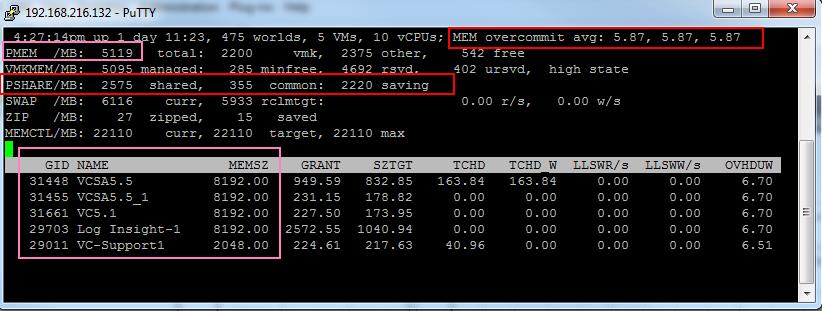
You will be able to see how much % of memory is overcommited in your ESXi host using the Value MEM Overcommit avg. The MEM overcommit avg tells us that the average memory over commitment level averages in 1-min, 5-min and 15-min. A value of 0.50 is a 50% over commitment of memory. In our case it is 5.87 which is nothing but 587% memory over commitment on my host. My ESXi host is having 5 GB of memory with 5 Virtual Machines. Out 5, 4 VM’s are allocated with 8 GB and 1 VM alloacted with 2 GB of memory. My total ESXi memory is 5 Gb but allocated memory for Virtual machines is 34 GB. which is almost 7 times the available memory of my ESXi host. This over commitment becomes only possible because of this VMware Memory management techniques.
Detailed stats about Memory saving using Transparent page sharing can be found with PSHARE value. Take a look at PSHARE/MB 2575 MB which is shared between the Virtual machines out of which 355 MB is common. Which allows us to save 2220 MB of memory using Transparent Page sharing.

Memory which are shared at individual Virtual Machines can also be viewed using the resource allocation tab of each virtual machines. Below Virtual machine is having around shared memory of around 1.64 GB. which is the Amount of guest “physical” memory shared with other virtual machines using the transparent page-sharing mechanism.

You can also use vCenter Performance graphs to collect the Shared memory stats of each Virtual Machine on the ESXi host using the shared stats under Memory in vCenter Advanced chart options.
 Shared
Common is the Amount of machine memory that is shared by all powered-on
virtual machines and vSphere services on the host.
Shared
Common is the Amount of machine memory that is shared by all powered-on
virtual machines and vSphere services on the host.
shared – sharedcommon = machine memory (host memory) savings (KB)
2575 Mb – 355MB = 2220 MB host memory saving

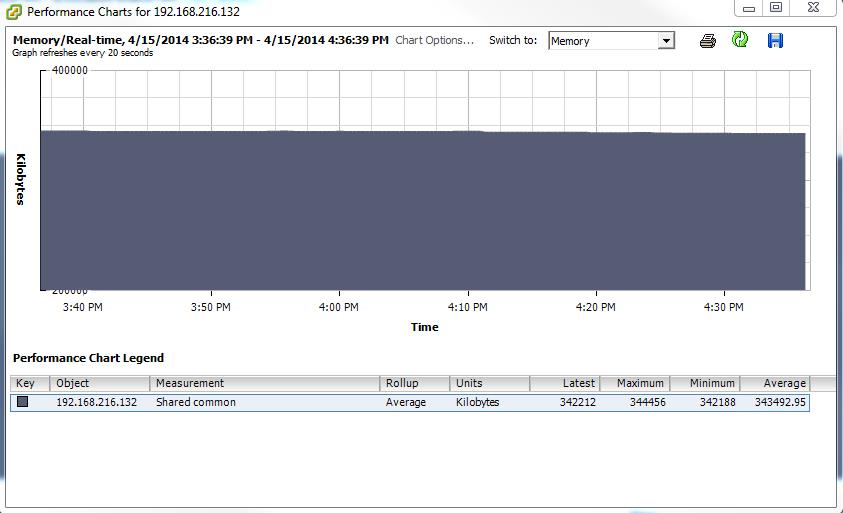
Below is the Graph for the Shared Common stats on the ESXi host. This chart can be pulled at ESXi host level using Advanced chart options under Memory. I hope this is informative for you. Thanks for Reading!!!. Be Social and share it in social media, If you feel worth share it .
This redundant copies are identified by their contents. TPS runs periodically and it scans all memory pages and calculates the hash value for each of them. Those hash values are saved in the global hash table and which are compared to each other by ESXi kernel. Every time VMkernel finds two identical hashes, It performs bit-by-bit comparison of corresponding memory pages. If pages are same, Kernel leaves only one copy of the page in the memory and removes the second copy. All the requests send to the removed page are redirected to the first single copy. when one of your Virtual machine requests to write to the page, VMkernel creates a new page and new page access will only be provided to that particular virtual machine. This terminology is called Copy-on Write (COW).
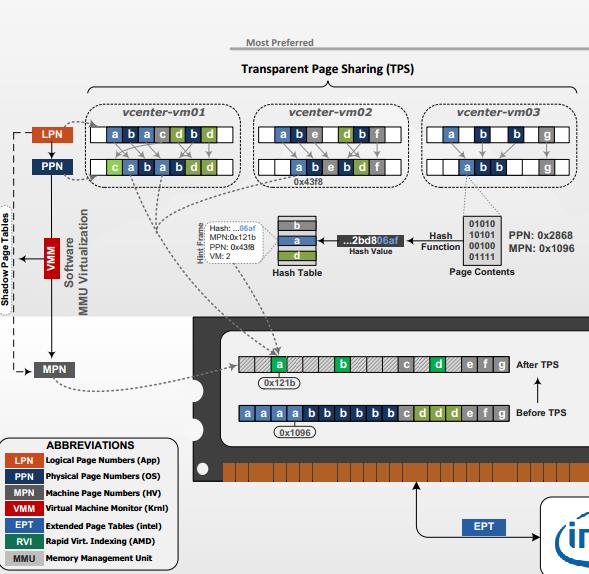
Image Thanks to VMware.com
Above diagram is from the VMware’s official Memory Management
diagram. It would like to explain using the same image. 3 VM’s
(vCenter-vm01,vm02 & vm03) on the esxi host. You can see the
Logical Page number(a,b,d) which are common on all the 3 virtual
machines. Using Transparent Page sharing, redundant memory pages (a,b,d)
are mapped into single copy at physical memory by removing the
redundant copies. You can compare the memory savings before and after
TPS. It uses the Hash table to compare the identical memory pages.You can verify the memory which are shared using Transparent memory Sharing (TPS) from Esxtop ,Virtual Machine Resource Allocation tab and also using vCenter Performance Graphs.
esxtop -> Press m
You will be able to see how much % of memory is overcommited in your ESXi host using the Value MEM Overcommit avg. The MEM overcommit avg tells us that the average memory over commitment level averages in 1-min, 5-min and 15-min. A value of 0.50 is a 50% over commitment of memory. In our case it is 5.87 which is nothing but 587% memory over commitment on my host. My ESXi host is having 5 GB of memory with 5 Virtual Machines. Out 5, 4 VM’s are allocated with 8 GB and 1 VM alloacted with 2 GB of memory. My total ESXi memory is 5 Gb but allocated memory for Virtual machines is 34 GB. which is almost 7 times the available memory of my ESXi host. This over commitment becomes only possible because of this VMware Memory management techniques.
Detailed stats about Memory saving using Transparent page sharing can be found with PSHARE value. Take a look at PSHARE/MB 2575 MB which is shared between the Virtual machines out of which 355 MB is common. Which allows us to save 2220 MB of memory using Transparent Page sharing.
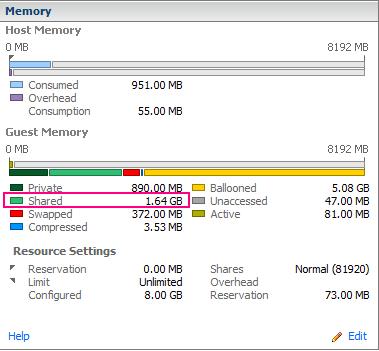
Memory which are shared at individual Virtual Machines can also be viewed using the resource allocation tab of each virtual machines. Below Virtual machine is having around shared memory of around 1.64 GB. which is the Amount of guest “physical” memory shared with other virtual machines using the transparent page-sharing mechanism.
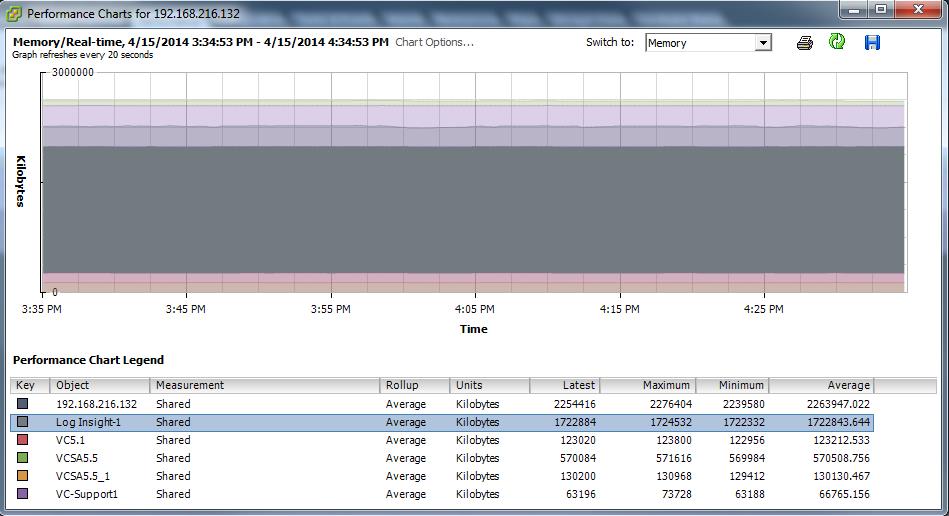
You can also use vCenter Performance graphs to collect the Shared memory stats of each Virtual Machine on the ESXi host using the shared stats under Memory in vCenter Advanced chart options.
 Shared
Common is the Amount of machine memory that is shared by all powered-on
virtual machines and vSphere services on the host.
Shared
Common is the Amount of machine memory that is shared by all powered-on
virtual machines and vSphere services on the host.shared – sharedcommon = machine memory (host memory) savings (KB)
2575 Mb – 355MB = 2220 MB host memory saving

Below is the Graph for the Shared Common stats on the ESXi host. This chart can be pulled at ESXi host level using Advanced chart options under Memory.
 I hope this is informative for you. Thanks for Reading!!!. Be Social and share it in social media, If you feel worth share it .
Comments
Post a Comment