Generate an Access- and Bearer Token for Aria Automation API Authentication
For automating things in Aria Automation, my preferred method is PowerShell calling the API’s.
I’ve been using this method for quite some time as you may have seen in my previous blogposts. Although VMware KB89129 describes the process to retrieve the Access Token, I noticed some people are still struggling to get started, hence I’ll share and explain this specific piece of code.
The first part of the script defines the variables:
- Note: The
$vraHostnamevariable. You may also use static values here. In my example the$vraHostnamevariable will result in vra.infrajedi.local and will be used later to connect. - Note: the
$vraUserDomainvariable and the comments I placed behind it.
The second part generates the initial header we need to make a REST call:
The third part generates the Refresh Token by calling out the Identity Service API:
- Note: For PowerShell JSON data, I prefer to use plain JSON. For PowerShell you have to pay special attention to the
@”opening and“@closing, as well as the correct use of curly brackets{}. - A great way to validate and correct your JSON data is the [jsonlint] website (beware you don’t copy passwords, just in case…)
The output of $response is:
Since we only need the value for the refresh token, a new variable $vraRefreshToken is created:
The $vraRefreshToken will be used in the body of the REST call to the IAAS API”
The (shortened) output of $response looks like this:
Finally I have created a $vraBearerToken variable containing the value of the token and added an “Authorization” entry to the existing header:
From here you can just include the header in any follow up API call. For example retrieving the Cloud Accounts:
- -> Examine the $response variable
- -> Examine $response.content to lookup the id for the Cloud Account (for example)
Have a look at my github page for additional examples.
Bonus add-on:
The $vraBearerToken can also be used directly in the Swagger UI which can be found here https://<vrahostname>/automation-ui/api-docs/
Click on any of the
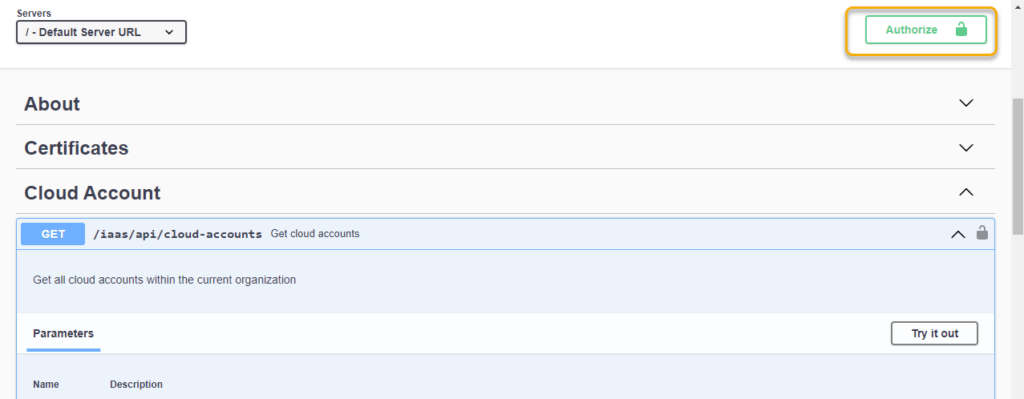
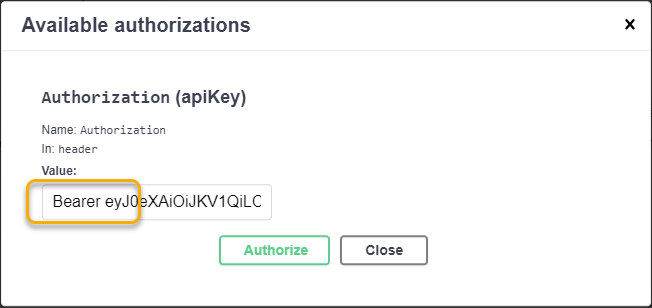
Click Authorize, Type Bearer followed by the $vraBearerToken value (just like it is in the header from the PowerShell script), Click Authorize and Close. Note that you will not get an error message if the token is incorrect (until you run an api call from the Swagger UI resulting in 401)
Now you can open any API call, click “Try it out” and clik “Execute” to run your request. Depending on the request you may have to enter values for required parameters.
Comments
Post a Comment