Admission Control

Admission Control is the policy engine within VMware vSphere HA that enforces survivability guarantees.
Its purpose is not performance optimization—it is risk containment. Admission Control ensures that the cluster never commits more compute resources than it can safely recover after a defined failure scenario (host, disk group, or site).
Admission Control is the guardrail that converts “high availability” from a best‑effort feature into an enforceable SLA.
Without it, HA still restarts VMs—but with no guarantee that capacity exists to do so.
Why Admission Control Exists
Architecturally, every HA cluster is designed around a failure domain:
- Loss of 1+ hosts
- Loss of a vSAN disk group
- Loss of an entire site (stretched cluster)
Admission Control ensures:
- The cluster always has reserved headroom
- That headroom matches the failure domain you designed for
- New workloads do not silently erode recovery guarantees
This is capacity governance, not just HA configuration.
How Admission Control Works
Admission Control blocks power-on operations (or vMotion with power-on) when doing so would violate the cluster’s ability to survive its worst‑case failure scenario.
Key points:
- It does not reclaim resources
- It does not throttle running workloads
- It only acts at VM power-on / restart time
Once a VM is running, Admission Control assumes that capacity has already been committed.
Admission Control Policies (Architectural Trade‑offs)
Host Failures Cluster Tolerates (Slot-Based or Percentage-Based)
Slot Policy (Legacy / Not Recommended)
- Calculates fixed “slots” based on largest VM
- Overly conservative
- Poor fit for modern, heterogeneous clusters
✅ Architect guidance: Avoid unless supporting legacy designs.
Percentage-Based Policy (Architect Standard)
Reserves a percentage of CPU and memory across the cluster.
Example:
- 25% CPU + 25% Memory reserved
- Guarantees recovery from the loss of ~1 out of 4 hosts
Why architects prefer it
- Scales cleanly
- Works with uneven VM sizing
- Predictable and auditable
Design responsibility
- You must size percentages based on:
- N+1 / N+2 requirements
- Oversubscription strategy
- Peak utilization, not averages
Dedicated Failover Hosts
Reserves specific hosts exclusively for failover.
Use cases
- Regulatory environments
- Fixed hardware pools
- Extremely deterministic recovery models
Architectural downsides
- Idle capital
- Operational rigidity
- Poor elasticity
✅ Best suited for regulated or static environments, not dynamic enterprise clusters.
Admission Control in vSAN Clusters
Admission Control becomes non‑negotiable in vSAN environments.
Why?
Because compute recovery without storage quorum is meaningless.
Key interactions:
- HA Admission Control ensures CPU/memory
- vSAN ensures object availability (FTT, RAID level)
Architect implication:
- You must size both layers together
- Admission Control does not account for:
- vSAN object repair time
- Rebuild I/O contention
- Disk group failure concurrency
✅ Best practice: Over‑reserve compute slightly in vSAN clusters to absorb rebuild pressure.
What Happens If You Disable Admission Control
You Gain:
- Higher apparent utilization
- Fewer “cannot power on VM” events
- Short‑term operational flexibility
You Lose:
- Guaranteed HA recovery
- Predictable failure outcomes
- Auditability of availability claims
Real‑world consequence:
HA becomes “best effort,” and recovery order becomes first‑come, first‑served.
This is often acceptable in:
- Dev/Test clusters
- Non‑production labs
Rarely acceptable in regulated, manufacturing, or research environments
Architect-Level Best Practices
✅ Use Percentage-Based Admission Control
✅ Design for explicit failure scenarios (N+1, site loss)
✅ Align Admission Control with:
- vSAN FTT policies
- Change management
- Capacity forecasting
- Review Admission Control after:
- Hardware refresh
- Host count change
- Large VM onboarding
- Never disable Admission Control in:
- Production stretched clusters
- Manufacturing / OT environments
- Regulated workloads
Summary
Admission Control is the mechanism that enforces your availability promise.
If HA defines what should happen, Admission Control defines whether it is allowed to happen.
Disabling or misconfiguration does not remove risk—it conceals it until failure occurs, when remediation is no longer possible.
vSphere HA – Admission Control
VMware Admission Control is a component of VMware vSphere High Availability (HA) that guarantees enough resources are allocated within a cluster to satisfy failover needs. It prohibits adding virtual machines (VMs) to a cluster if this would compromise the cluster’s capability to secure resources for recovering VMs during host failures.
Host failures cluster tolerates
Reserves capacity based on the number of host failures the cluster can tolerate. Say you have a cluster with 3 hosts you can set this number to either 2 or 1. If it is 1 then you will be allowed to run VMs equivalent to the resources of 2 hosts. If you choose two you will be able to run VMs equivalent to the resources of 1 host. For most use cases with a 3 node cluster you would design to tolerate a loss of 1 host.
Remember that if you have admission control enabled and want to deploy more VMs than the Admission Control settings allow, you will not be able to turn the VM on.
Define host failover capacity by
Within this menu there is four options, and they define how admission control works within your cluster.
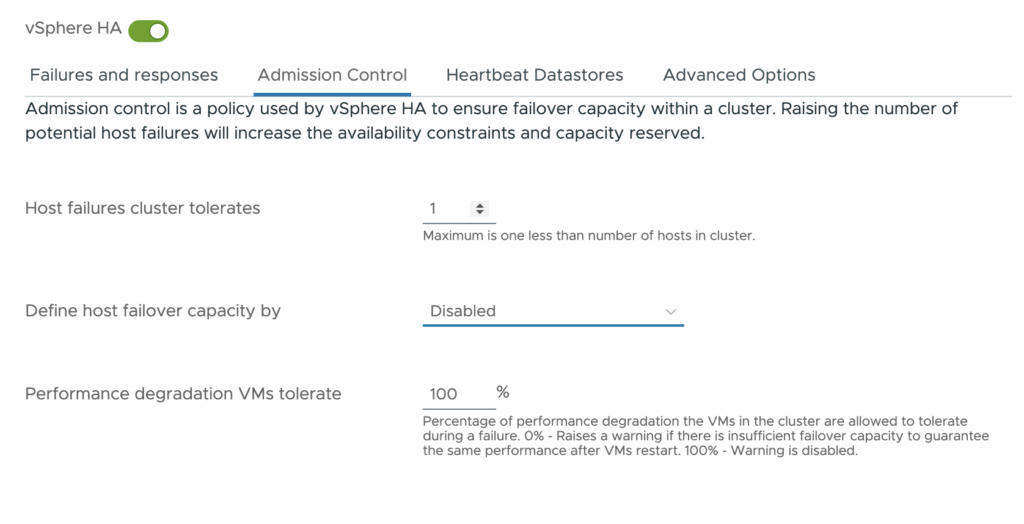
Disabled
As the setting suggests, Admission control is disabled.
Slot Policy
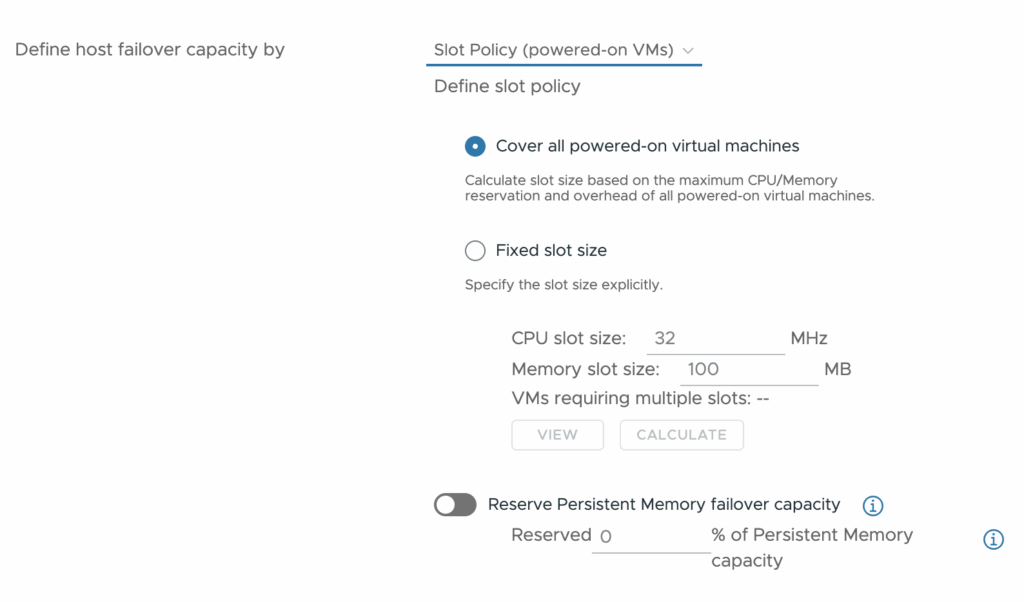
Cover all powered-on virtual machines: The software will examine all the VMs you have running and, based on the largest VM, calculate the slot size. If the largest one has 4 CPUs and 16GB RAM, it will consider the number of VMs that RAM allows. If your largest one has 24 CPUs and 256GB RAM, it will examine the number of VMs of that size that can be run. It is worth noting that it will reserve this size regardless of how much RAM your VMs are using. So this works best for homogeneous configurations. If you have 1.5TB RAM available in the hosts, it will allow 16GB slots to run 93 VMs if the slot size is 256GB to run 5 VMs.
Fixed Slot size: This allows you to define the slot size yourself.
Reserve Persistent Memory failover capacity: This setting enables you to reserve memory for failover purposes. The memory will not be allocated to VMs when it is not in use.
Cluster resource percentage
Within the cluster, you can designate a specific percentage of CPU and memory resources to be reserved. This percentage determines the resources that must remain unused for running VMs, thereby safeguarding their availability for failover situations. As VMs are started or stopped, or as hosts are added or taken away, the reserved resources are adjusted in real-time. This dynamic adjustment guarantees ongoing adherence to the established percentage, accommodating changes in the cluster’s setup.
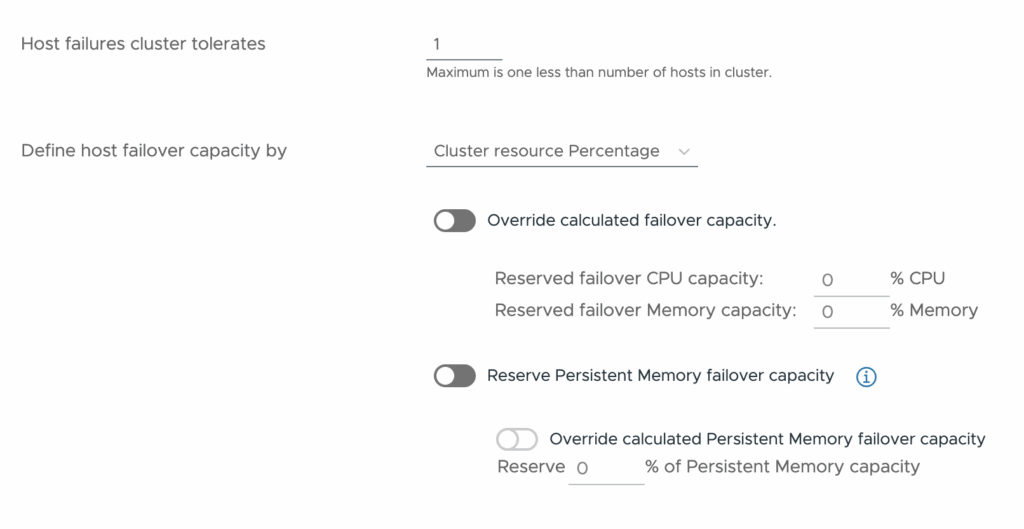
The override functions allow the administrator to define the failover capacity themselves
Dedicated Failover hosts
These hosts are reserved exclusively for restarting virtual machines (VMs) in the event of a host failure, ensuring that resources are readily available for failover purposes.
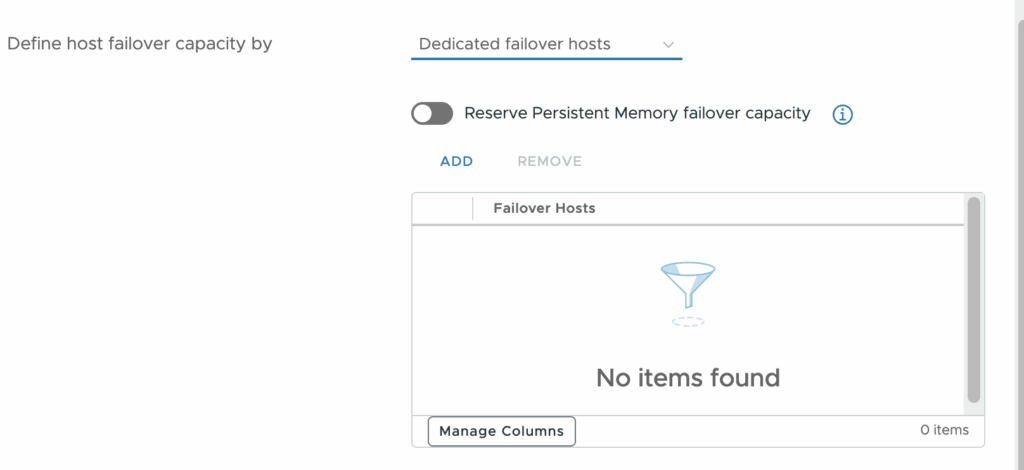
This means that these hosts will idle until a failover is needed, then the host will act as the failover. In normal operations, they will not run any virtual machines.
Performance degradation VMs tolerate
Percentage of performance degradation that the VMs in the cluster can tolerate during a failure. 0% – Signals a warning if there isn’t enough failover capacity to maintain the same performance level after VMs restart. 100% – Disables the warning.
Comments
Post a Comment