Data Store housekeeping
In today’s world of Virtualization, we love to thin provision and overcommit. Be vary of the limitations….
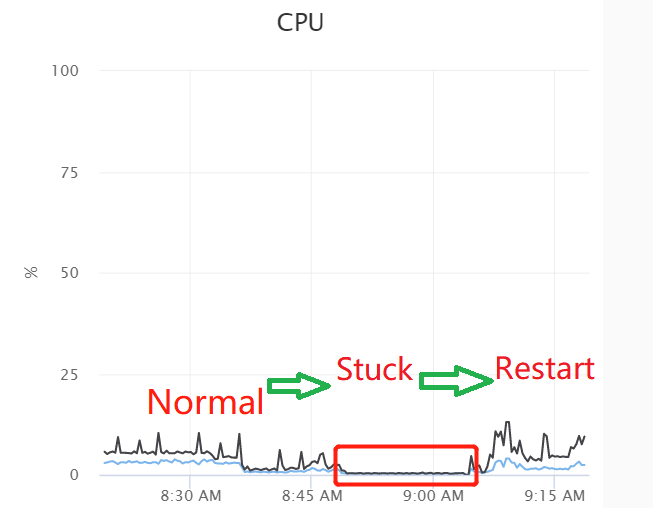
When a vSphere datastore becomes full, several issues can arise that may impact virtual machine (VM) operations and the overall performance of the environment:
Virtual Machine Operations Halt: If the datastore is full, VMs running on it may not be able to perform operations that require additional storage space; in the worst case, this may affect the writing of new data. VMs will become unresponsive or crash.
Snapshots and Backups Fail: Snapshot creation and backup operations will fail because there is no space to store the snapshot data or backup files.
Performance Degradation: As the datastore nears full capacity, performance may decline due to insufficient space for swap files and other temporary files that VMs may require.
Inability to Power On VMs: If a VM is powered off, it may not be possible to turn it back on if there is not enough space to accommodate its swap file.
Monitoring
The most obvious is to monitor the data store usage, ensure there is always a buffer, and not allow any data store to be more than 80% full. In smaller environments, it is a doable task to perform this manually, for larger environments an alert should be created for this.
A check that sends you an email if you hit the threshold could be created with a script
# Connect to the vCenter server
Connect-VIServer -Server "vCenterServerName" -User "username" -Password "password"

# Set the threshold for datastore usage
$threshold = 80

# Get all datastores
$datastores = Get-Datastore

foreach ($datastore in $datastores) {
    # Calculate the usage percentage
    $usagePercent = ($datastore.UsedSpaceGB / $datastore.CapacityGB) * 100

    # Check if the usage exceeds the threshold
    if ($usagePercent -gt $threshold) {
        # Create an alarm if the threshold is exceeded
        New-AlarmDefinition -Entity $datastore -Name "Datastore Usage Alert" -Description "Datastore is more than 80% full" -Expression {
            New-AlarmExpression -Metric 'DatastoreUsage' -Operator 'GreaterThan' -Value $threshold
        } -Action {
            New-AlarmAction -ActionType 'SendEmail' -To 'admin@example.com'
        }
    }
}

# Disconnect from the vCenter server
Disconnect-VIServer -Confirm:$false- The script sets a threshold of 80% for datastore usage.
- It retrieves all datastores and calculates the usage percentage for each.
- If a datastore’s usage exceeds the threshold, it creates an alarm with `New-AlarmDefinition`.
- The alarm is configured to send an email notification when triggered.
If you have a monitoring system like Nagios an alert definition can be created.
Add the following command definition to your `commands.cfg` file in Nagios:
define command {
    command_name    check_datastore_usage
    command_line    /usr/local/nagios/libexec/check_datastore_usage.sh $ARG1$ $ARG2$
}
Create a script named `check_datastore_usage.sh` in your Nagios plugins directory (e.g., `/usr/local/nagios/libexec/`). This script will check the datastore usage and return the appropriate status.
#!/bin/bash

# Arguments
DATASTORE_NAME=$1
THRESHOLD=$2

# Simulate checking the datastore usage
# Replace the following line with actual logic to get datastore usage
USAGE_PERCENT=$(shuf -i 70-90 -n 1)

if [ "$USAGE_PERCENT" -gt "$THRESHOLD" ]; then
    echo "CRITICAL: Datastore $DATASTORE_NAME is $USAGE_PERCENT% full"
    exit 2
else
    echo "OK: Datastore $DATASTORE_NAME is $USAGE_PERCENT% full"
    exit 0
fi
Make sure to make this script executable:
chmod +x /usr/local/nagios/libexec/check_datastore_usage.shAdd the following service definition to your `services.cfg` file in Nagios:
define service {
    use                 generic-service
    host_name           your_vcenter_host
    service_description Datastore Usage
    check_command       check_datastore_usage!DatastoreName!80
}
Storage DRS
Another way to ensure that a Data Store doesn’t run full is to setup Storage DRS
Reducing snapshots
Aging snapshots can quickly become large. It is not to uncommon for snapshots to be taken and then forgotten. This script adds all snapshots from a vCenter that are older than 48hours and exports it to a csv
# Connect to the vCenter server
Connect-VIServer -Server "your_vcenter_server" -User "your_username" -Password "your_password"

# Get the current date and time
$currentDate = Get-Date

# Define the time threshold (48 hours ago)
$timeThreshold = $currentDate.AddHours(-48)

# Get all snapshots older than 48 hours
$snapshots = Get-VM | Get-Snapshot | Where-Object {$_.Created -lt $timeThreshold}

# Export the snapshots to a CSV file
$snapshots | Select-Object VM, Name, Created | Export-Csv -Path "C:\Path\To\Your\File.csv" -NoTypeInformation

# Disconnect from the vCenter server
Disconnect-VIServer -Confirm:$false
Conclusion
If you ever experience frozen production VMs from full data stores, not having the mitigating controls in place will keep you up at night. If you have not yet experienced it, awesome!
There are easy ways to ensure it doesn’t happen. You should look into it. Of course, another way is to use thick provisioned disks and keep buffers for snapshots….
Comments
Post a Comment